Products
Definition
A product is the base unit to follow sales, and is generally displayed as a single unit in a commercial website or catalog. It generally has a single price.
It could be represented by one or several SKUs. For SKU definition, see SKUs
SKUs are the base unit to manage stock, while product is a commercial unit, with a common price. For example: T-shirt MYTSHIRT is a Product, while, MYTSHIRT / Black / S is a SKU. SKUs can then be grouped into products. For example, product MYTSHIRT is composed of:
- MYTSHIRT / Black / S
- MYTSHIRT / Black / M
- MYTSHIRT / Black / L
- MYTSHIRT / Black / Xl
Grouping SKUs into product is not mandatory. Using product can be interesting if:
- you want to follow your sales through Hubble, at product level
- you want synchronize products to a commercial website or a marketplace
- you want to use some of the fields available only at product level
It is possible to have only 1 SKU for 1 product
View products
Products can be accessed through the menu Products in MASTER DATA section:

Click on a product code to view product detail.
Page Layout
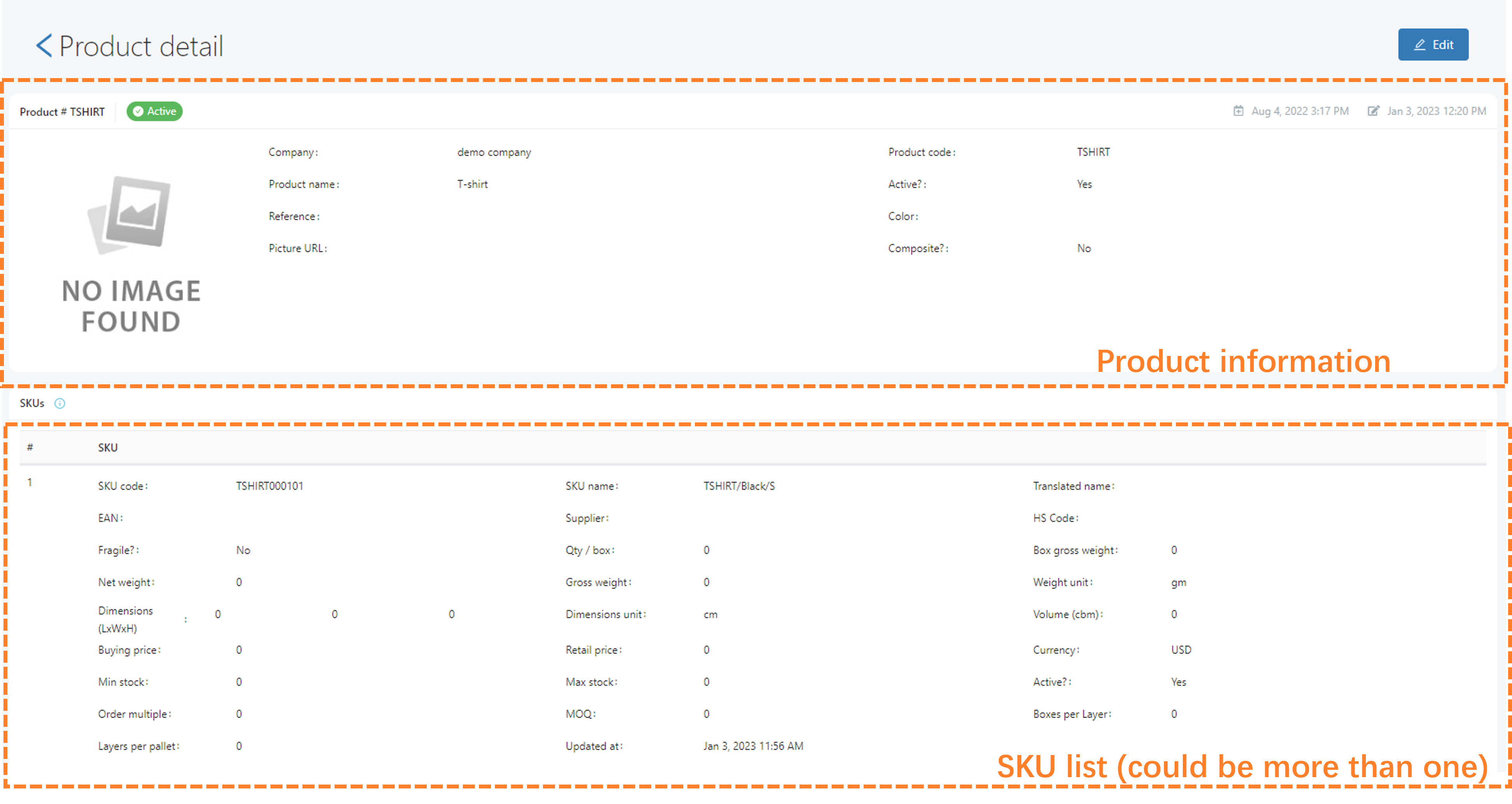
Products page is organized in 2 cards:
- Product information
- SKUs list
Fields
Below is the list of fields for Product only (top card). For SKU fields, see SKUs
| Field | Definition | Mandatory? |
|---|---|---|
| Code | Product code is the main code for this product. It should be unique for the whole data set | Y |
| Name | Product name is the main name for this product | Y |
| Active | If untick, the product is not available for synchronization: the data is just kept for history purpose | |
| Reference | Reference number for this product, if the product has a secondary code | |
| Color | deprecated | |
| Picture URL | URL to an external website, in order to display in Hubble | |
| Composite | deprecated |
Create and edit products
Role userForm
You can use form to create or edit a single Product. See form for more details about form usage.
- Create is accessible from list view: an empty form will appear to create a new product. Product code must be unique: if already used, an error message will be displayed after submit
- Edit is accessible from the detailed view of a given product: a form with current data will appear
When creating or editing, it is possible to add SKUs by clicking on the button Add SKU at the bottom of the SKU list:
Mass upload
Products can be uploaded by Excel. See mass upload for the whole upload process.
Default template
The default template for upload of products is:
| Field | Level | Pivot column | Constraint | Excel column |
|---|---|---|---|---|
| Product code | Product | Y | Mandatory | A |
| Product name | Product | Mandatory | B | |
| SKU code | Product | Y | Mandatory | C |
| SKU name | Product | Mandatory | D | |
| EAN | Product | Optional | E |
Example of upload with default template
For example, if the following file is uploaded:
| Column A | Column B | Column C | Column D | Column E | Good input? | |
|---|---|---|---|---|---|---|
| Row 1 | PRO1 | Product 1 | SKUA | SKU A | 3300000000001 | |
| Row 2 | PRO2 | Product 2 | SKUB | SKU B | ||
| Row 3 | PRO2 | Product 2 | SKUC | SKU C | ||
| Row 4 | PRO3 | Product 3 | SKUD | SKU D | ||
| Row 5 | PRO3 | Product 3 bis | SKUE | SKU E | ||
| Row 6 | PRO3 | Product 3 | SKUE | SKU E bis |
- Product 1 will be created with 1 SKU
- Product 2 will be created with 2 SKUS: SKU B and SKUC, with no EAN.
- Product 3 will still be created with 2 SKUs, SKU D and E, but:
- Only the first name will be considered, "Product 3 bis will be ignored"
- Last line will be rejected: SKU code is a pivot value, but SKU code should be unique